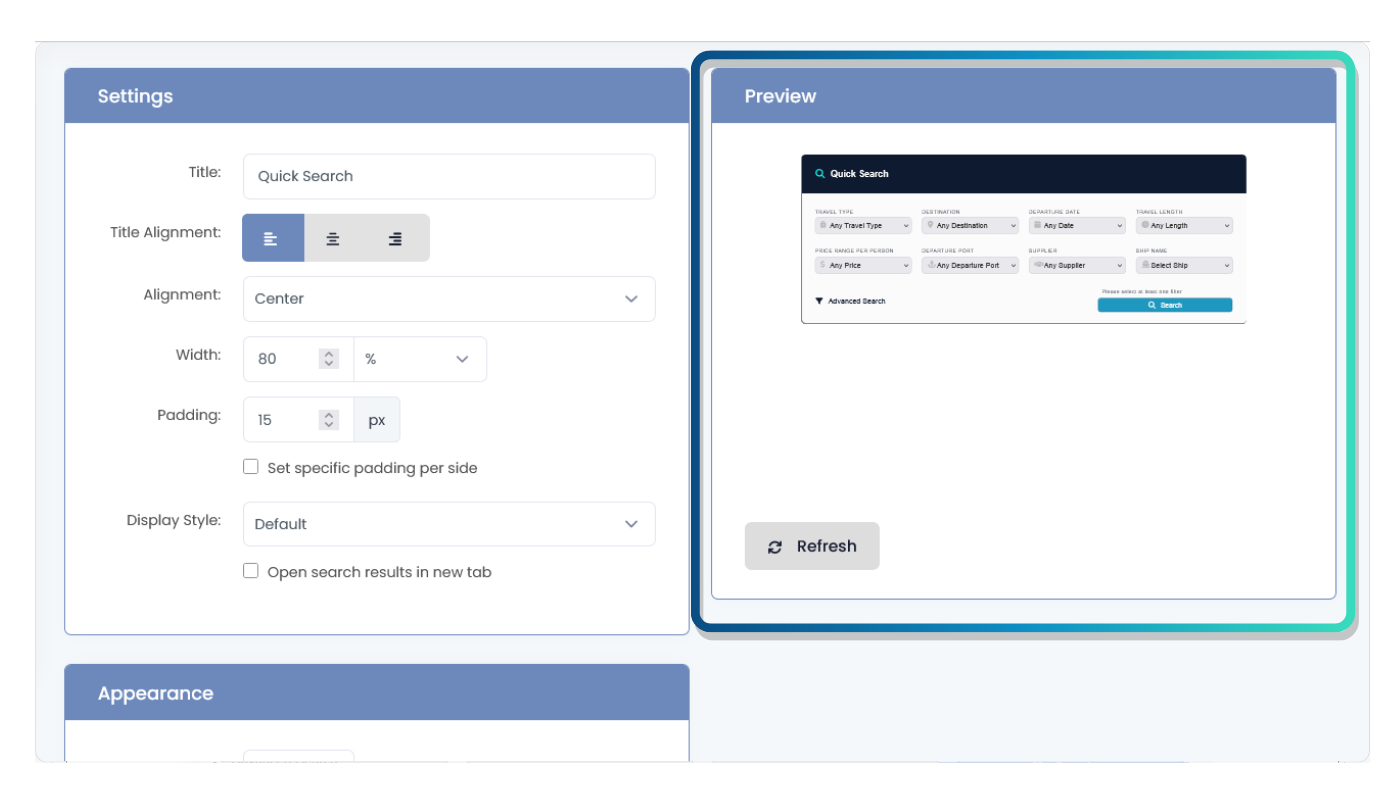
Settings
Controls the basic layout and positioning of the search box.
- Title
- Title alignment
- Search box alignment
- Width
- Padding
- Display style
- Open search results in a new window
After choosing a search box style, you can customize the layout, appearance, and search options from the page editor.
Search box customization is organized into three main areas.
Controls the basic layout and positioning of the search box.
Controls how the search box looks on your website.
Controls which search fields are shown to visitors.
Follow these steps to update a search box from the page editor.
From the admin area, open the page that contains the search box you want to edit.
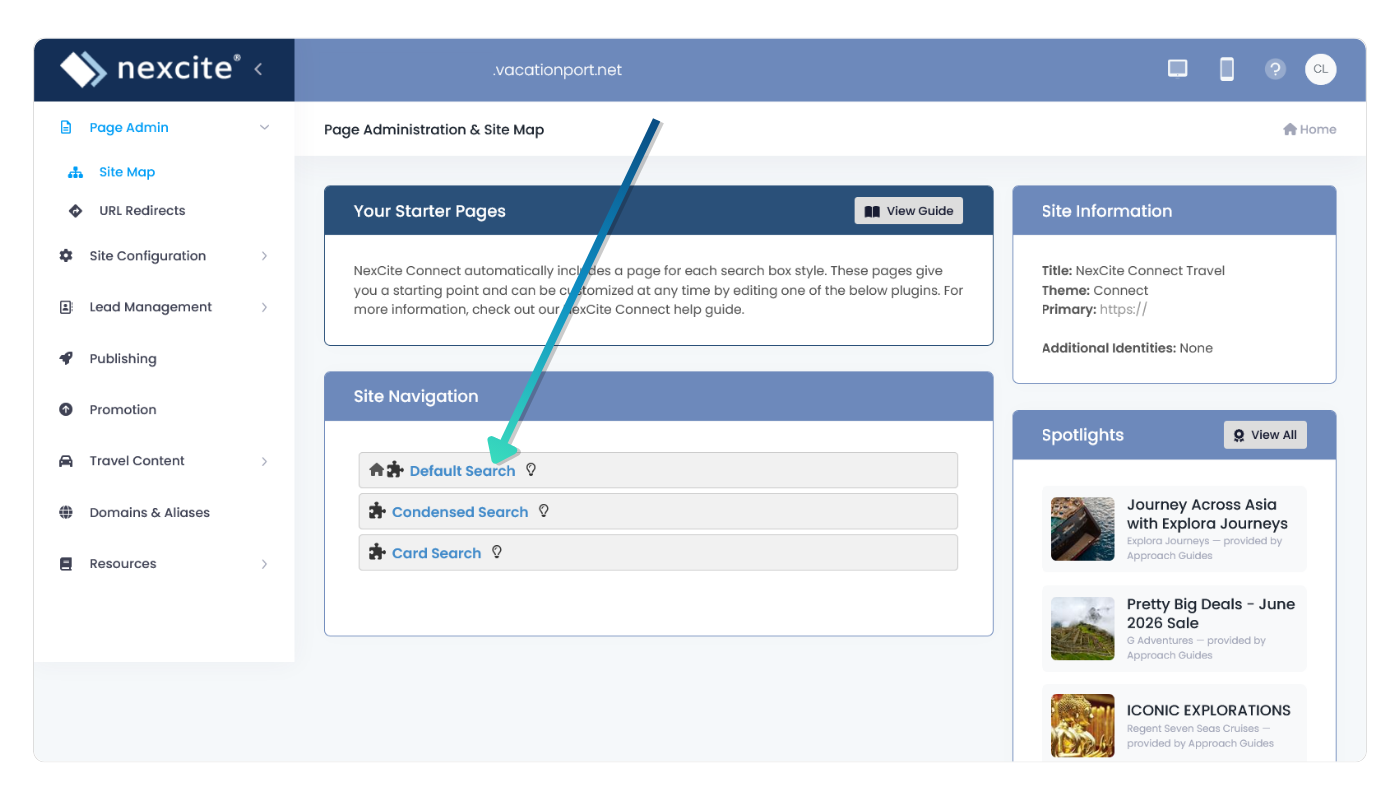
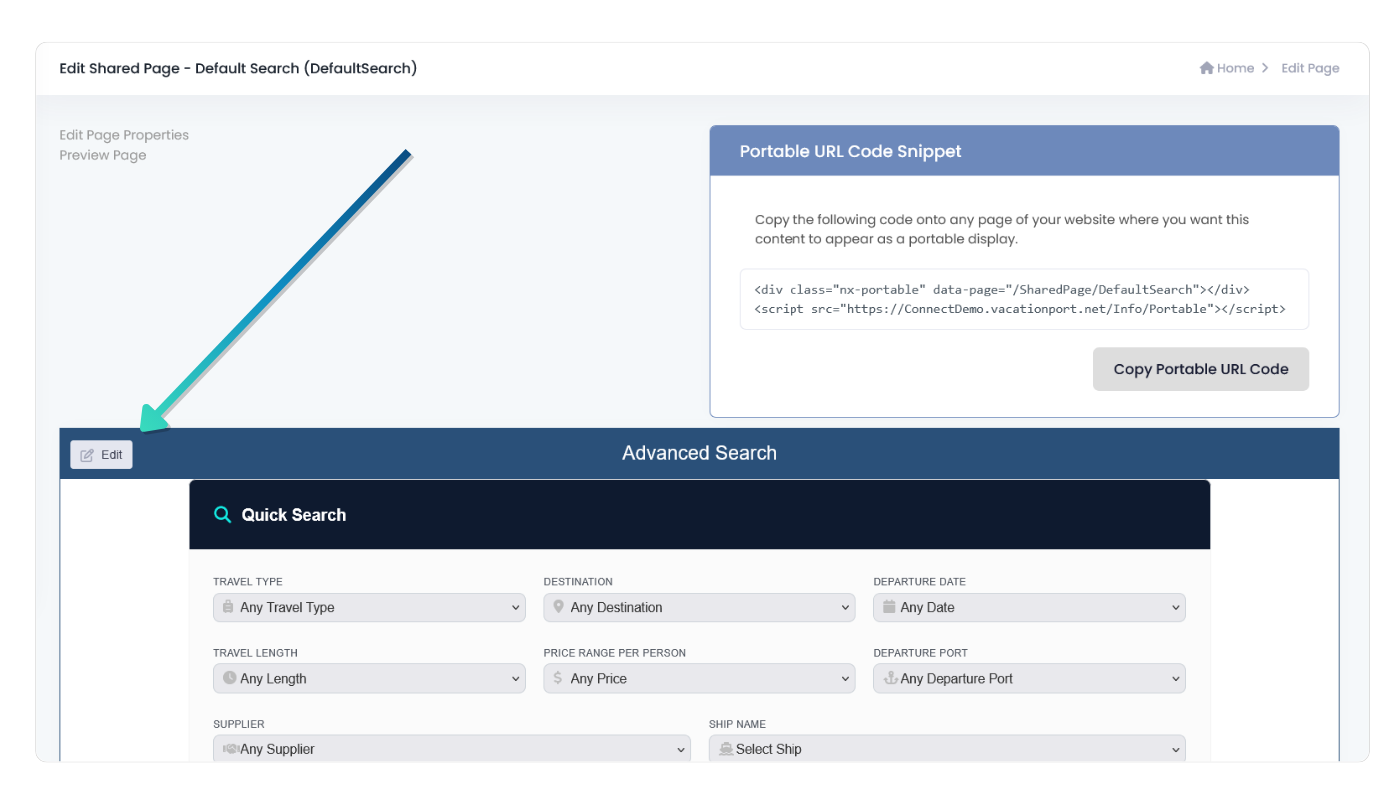
Find the Advanced Search section on the page.
Select Edit on that section to open the search box settings.
Use the Settings, Appearance, and Search Options sections to customize the search box. As you make changes, the preview updates automatically.
Use this table to quickly find the setting you need based on what you want to change.
These examples show how common design settings affect the search box.
Padding adds space inside the search box around the fields.
Corner radius controls how rounded or square the corners appear.
Box shadow helps the search box stand out from the page background.
Some customization settings use design terms. These descriptions explain what each setting changes.