Adjusting Supplier Preferences
Supplier preferences allow you to control both supplier visibility and search result priority throughout your website.
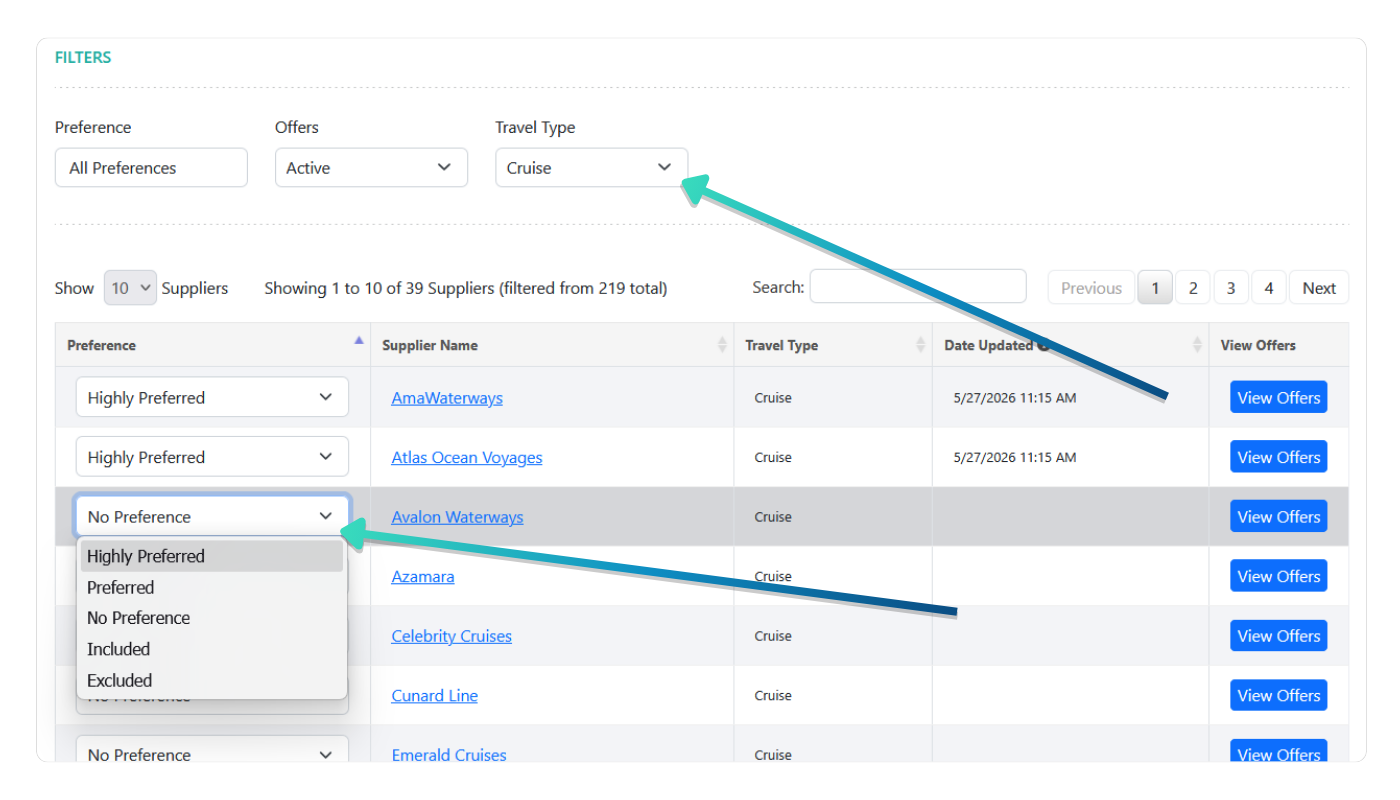
Suppliers can be assigned preference levels such as Highly Preferred, Preferred, No Preference, Included, or Excluded. Search results are weighted to give greater visibility to suppliers with higher preference rankings.
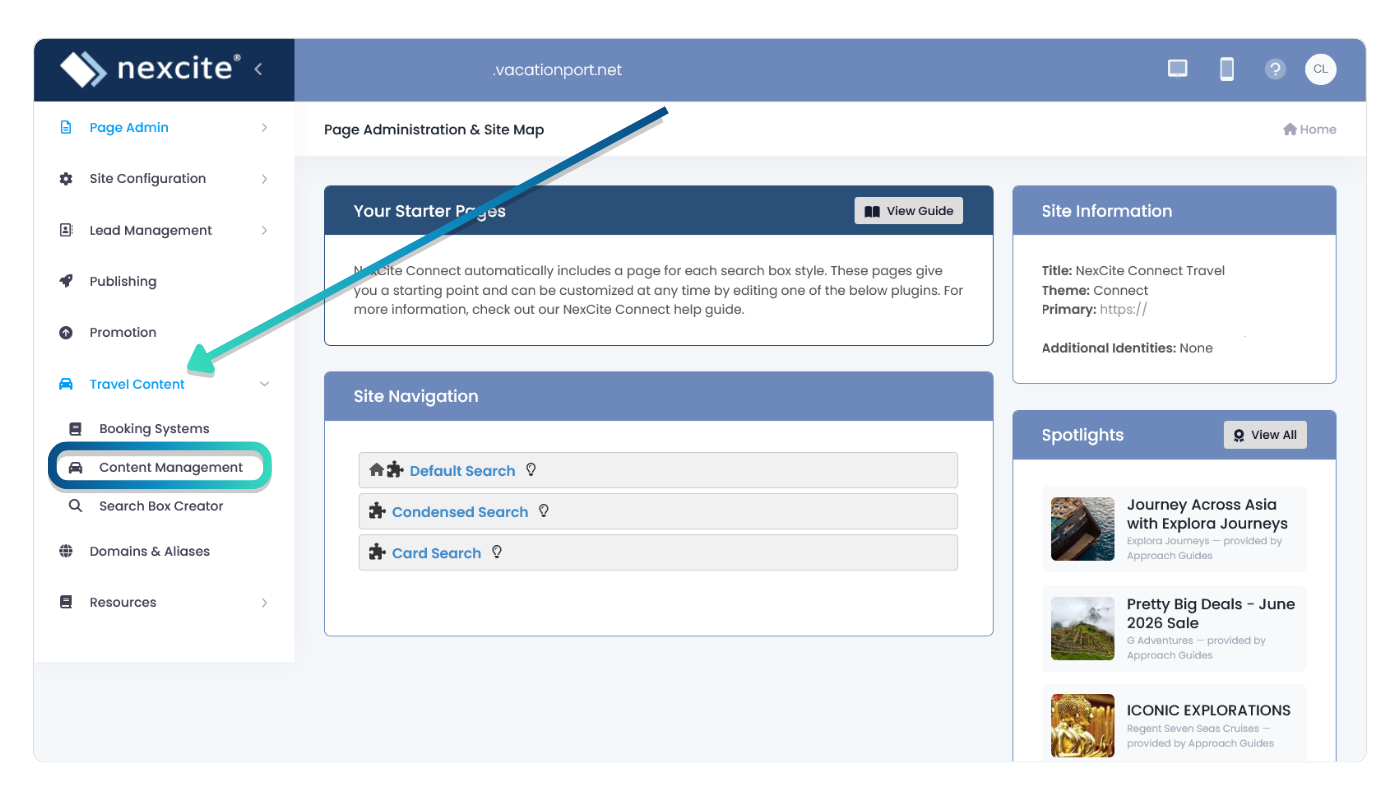
Open Content Management
From the admin area, select Travel Content in the left navigation menu.
Then select Content Management from the submenu.
Open Your Suppliers
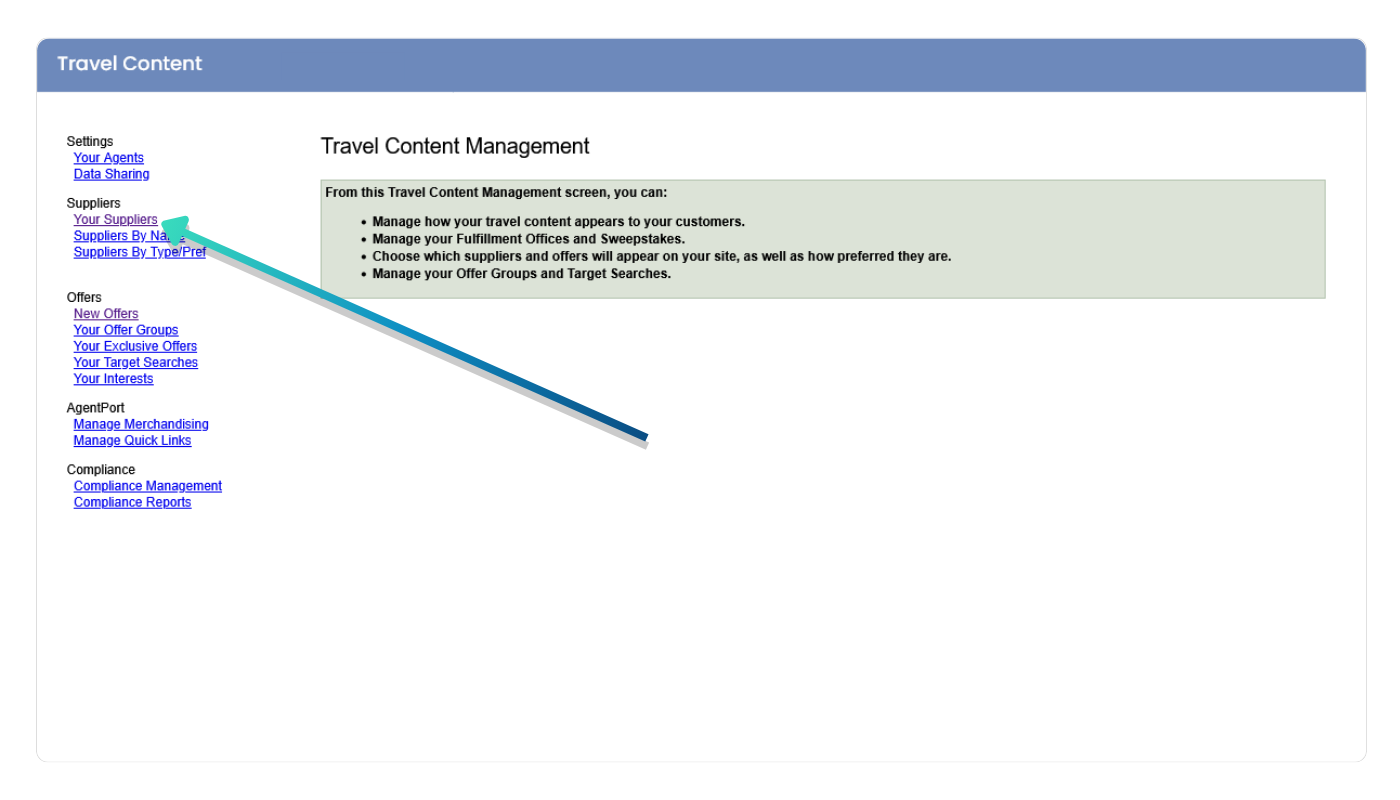
In the Content Management area, find the Suppliers section.
Select Your Suppliers to open the supplier list and adjust supplier preferences.
Review Available Suppliers
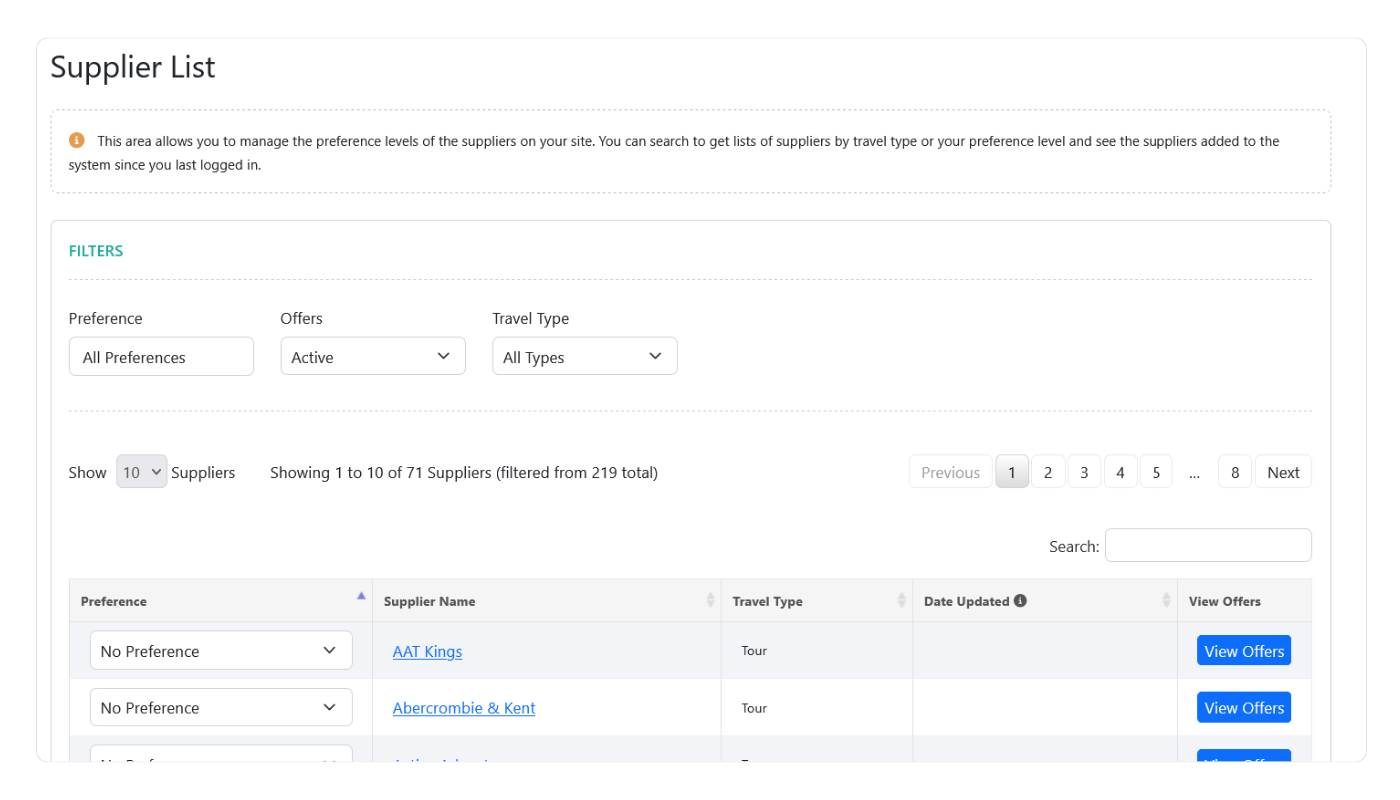
Review the list of suppliers currently available for your website.
Use the available filters to narrow suppliers by preference level, offers, or travel type.
Adjust Supplier Preferences
Update the preference level for suppliers you want to prioritize or make available throughout your site.
You can also remove or lower preference levels for suppliers you do not want displayed prominently.
Before You Finish
- Review your preferred supplier selections.
- Confirm travel content appears as expected on your site.
- Publish changes if your site requires publishing before updates appear live.