• Introduction
    • How It Works
  • Getting Started
    • Access NexCite Connect
    • Supplier Preferences
    • Search Box Styles
    • Customize Search Boxes
    • Publishing
    • Embed a Search Box
  • Lead Management
    • Trip Requests
  • Introduction
    • How It Works
  • Getting Started
    • Access NexCite Connect
    • Supplier Preferences
    • Search Box Styles
    • Customize Search Boxes
    • Publishing
    • Embed a Search Box
  • Lead Management
    • Trip Requests
Lead Management

Viewing Submitted Leads

Submitted trip requests are viewed and managed in AgentPort. Use these steps to return to the VacationPort apps screen, open AgentPort, and review incoming leads.

Good to know

Lead Management settings are configured in NexCite Connect, but submitted leads are reviewed in AgentPort.

1

Return to VacationPort Apps

From NexCite Connect, return to the VacationPort apps screen where your available products are listed.
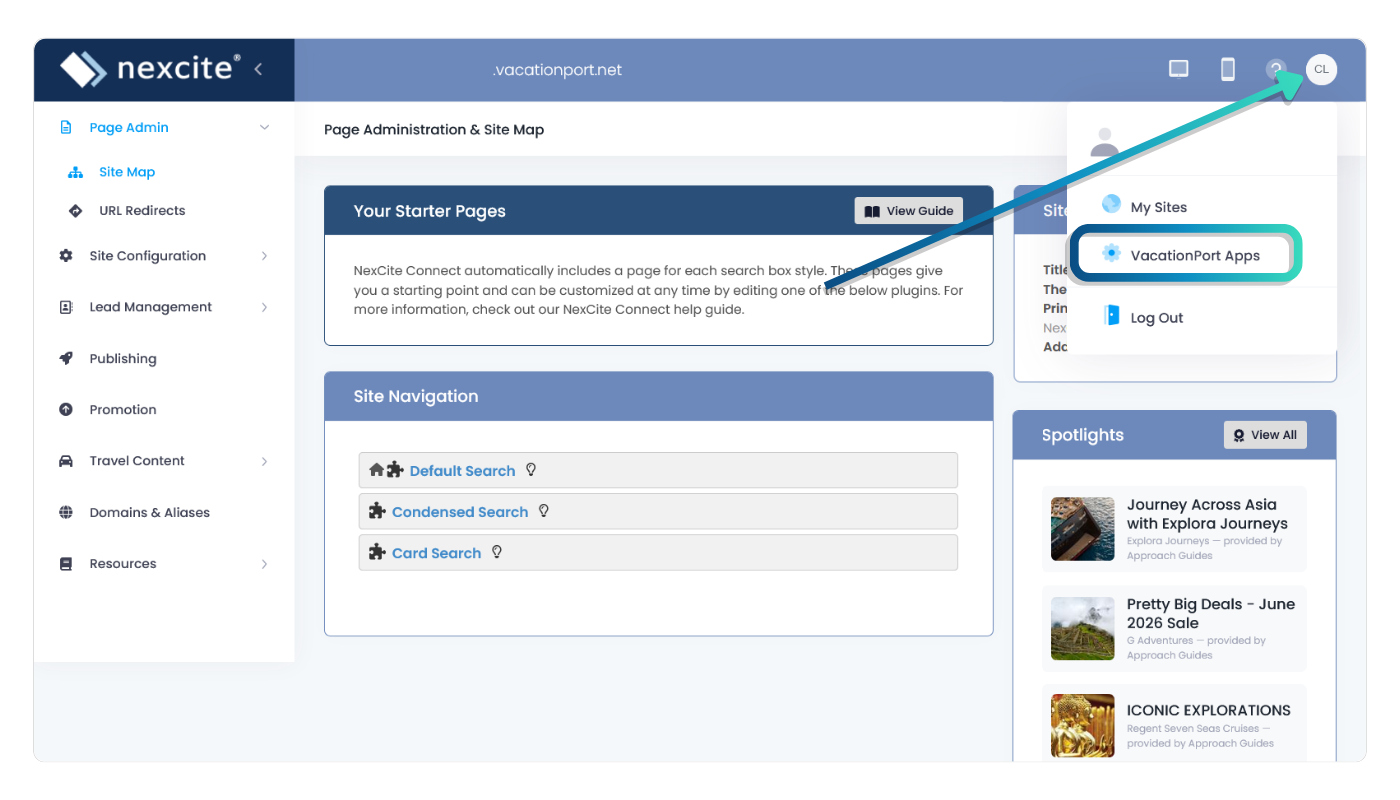
VacationPort apps screen
2

Open AgentPort

Select AgentPort from the available apps.

AgentPort is where submitted trip requests and lead details are managed.
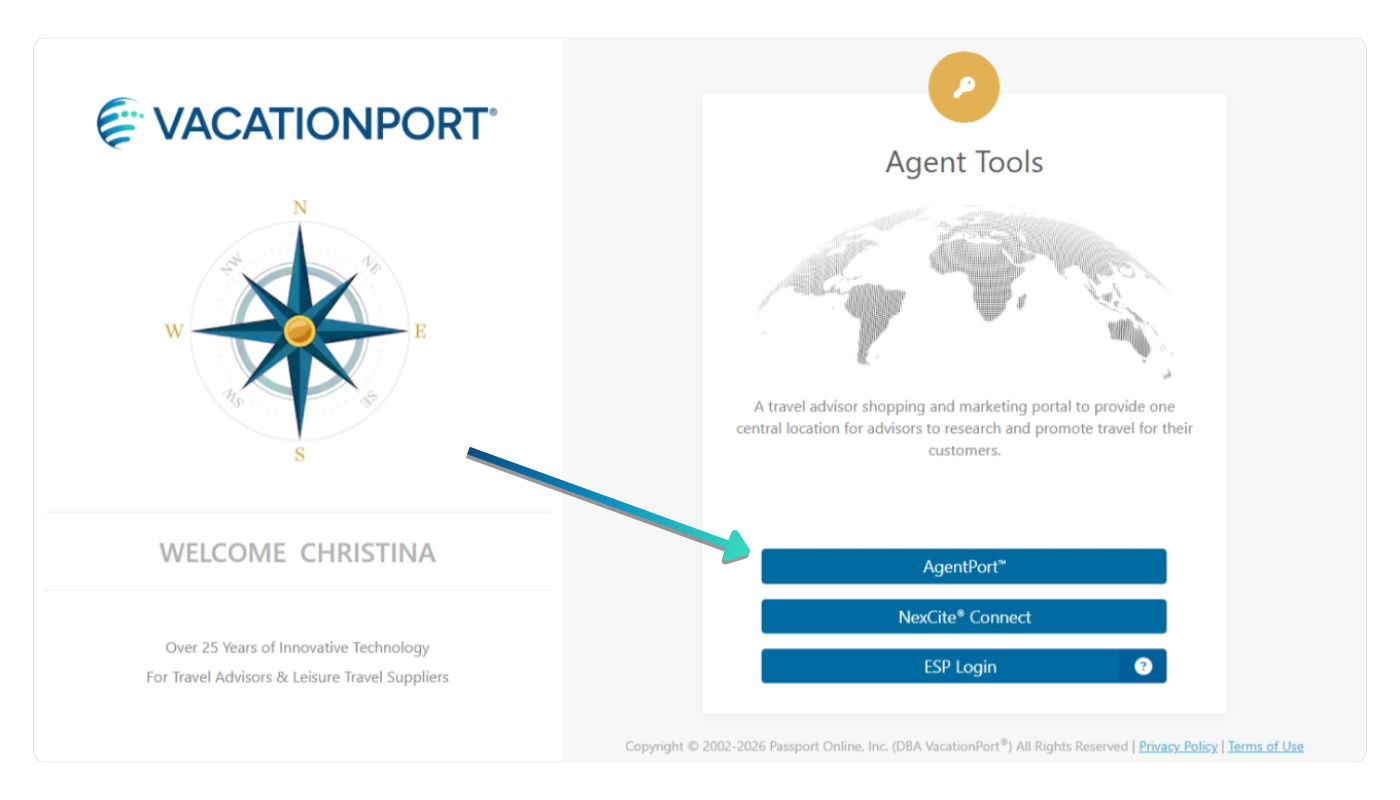
AgentPort button on the VacationPort apps screen
3

Open Leads

In AgentPort, open the Leads area to view submitted trip requests.
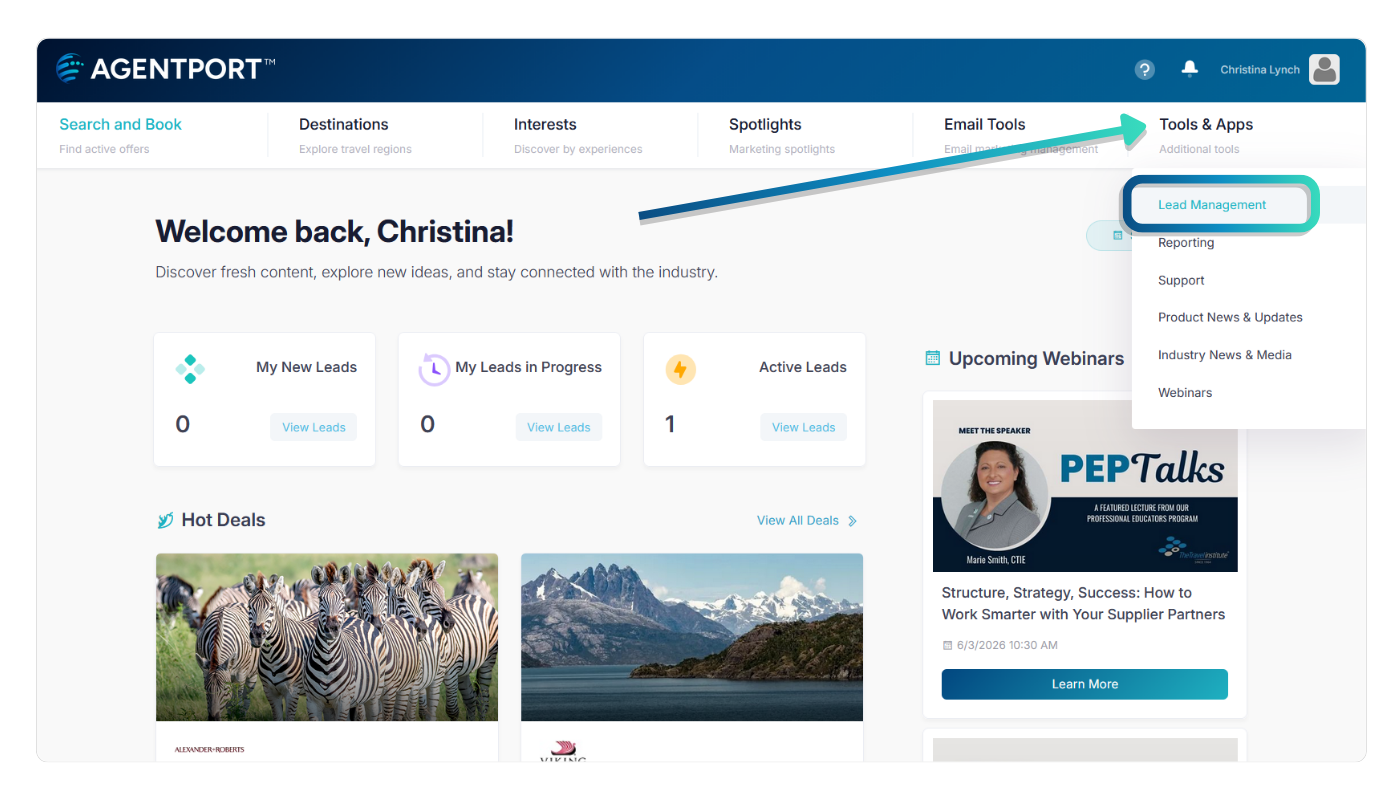
Leads area in AgentPort
4

Review Lead Details

Select a lead to view the full trip request details submitted by the visitor.

From here, you can review the request, update the lead status, and assign the lead to an agent if needed.
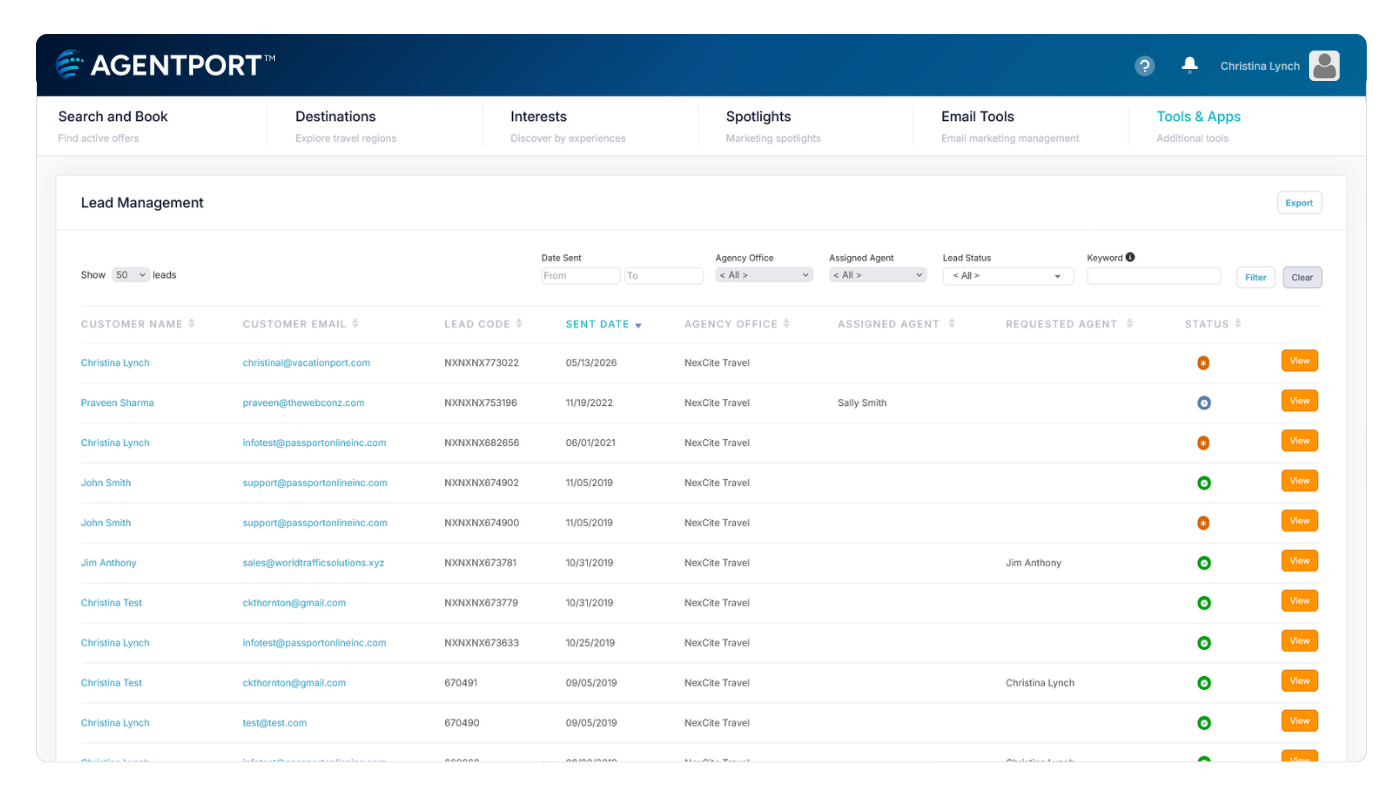
Submitted lead details in AgentPort

What You Can Do with Submitted Leads

  • Review visitor contact information.
  • View submitted trip request details.
  • Update the lead status.
  • Assign the lead to a specific agent.
  • Track follow-up activity.

Need to Change Lead Settings?

Return to NexCite Connect if you need to update trip request settings, agency offices, or lead access.

Lead Management Setup

Contact Us

8705 SW Nimbus Ave, Suite 200
Beaverton, OR 972008

Email: